
PDF Upload Rejected? Build a Smaller, Signed Packet
The application asks for one signed PDF under 5 MB. You have a cover letter, a six-page form and a scan that faces sideways. Here is how to assemble the packet while keeping the signature, the small print and the file limit in view.
By Max Clark ·
Read the upload box before opening a PDF
Copy the form's exact wording into a note. “Attach proof of address, one PDF, maximum 5 MB” gives you three separate checks. The file has to contain the right evidence, it has to be a PDF and it has to fit the limit. The picker accepting your file only tells you that it let you select it. Some portals check the contents after you press the final submit button.
Look for separate upload boxes. If there is one for the signed application and another for receipts, combining everything in one file could leave the second box empty. Check whether the size limit appears next to each box or above the whole list of attachments. A 3 MB application and a 3 MB appendix both fit a 5 MB limit per file. Together they exceed a 5 MB limit on the entire submission.
Make a working folder and keep the untouched originals beside it. A short note such as “one cover, form pages one to six, one receipt” gives you an expected total of eight sheets. That little bit of arithmetic will help later when two perfectly readable pages turn out to be copies of the same receipt.
Choose whole files or individual sheets
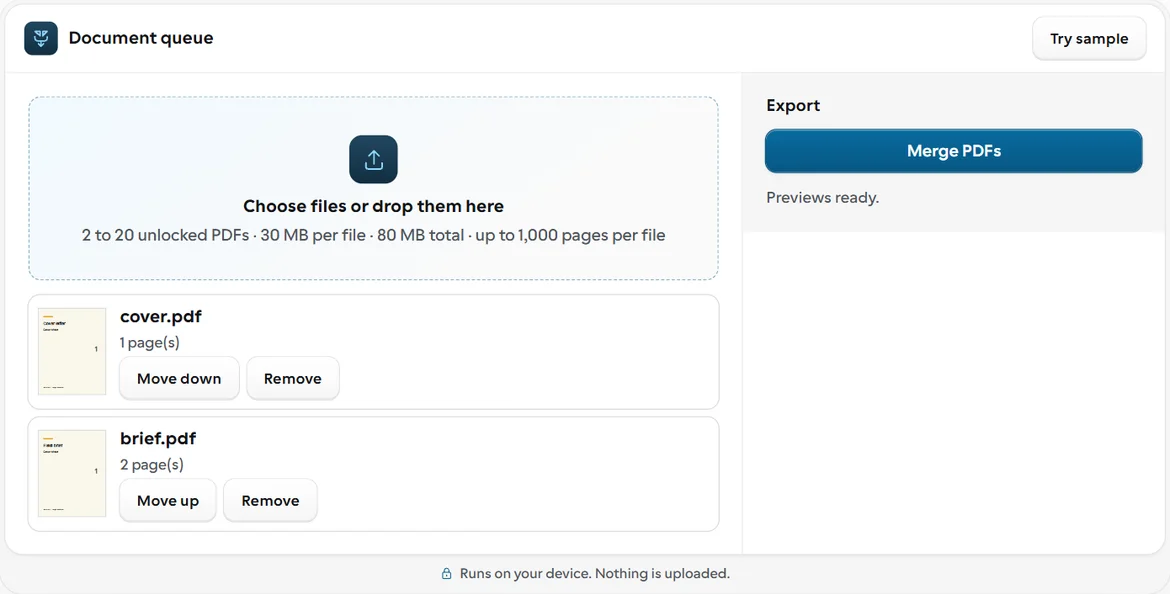
Start with Merge PDF when you need every page of each file. Try the supplied cover and brief. There are two entries in the queue but three pages in the download because the brief contains two sheets. Move the brief up once. Its two pages now travel together. This is a useful distinction if what you actually want is to put the cover between those two pages.
For a longer document, use Extract PDF pages to take just the sheets the form names. The tool counts physical pages starting at the front of the file. A report can have a cover, a contents page and a sheet printed with the number one. In that file the printed first page is physical sheet three. Look at its heading and the first line underneath before selecting it.
Suppose the portal wants the statement that shows your name and current address. Those details might appear together on a single sheet, or the address might be on the cover and the statement period on the next page. Read the request closely before taking only the smallest possible extract. An extra blank sheet is a nuisance. Missing the one piece of evidence the reviewer asked for can mean starting the application again.
Fix the sideways page where it occurs
Use Organize and Rotate PDF if the files have the right contents but individual sheets need attention. Look at the top line of text on each page. A landscape chart can be correctly oriented even though its shape differs from the portrait pages around it. Rotate the page that a reader would otherwise have to turn their head to read.
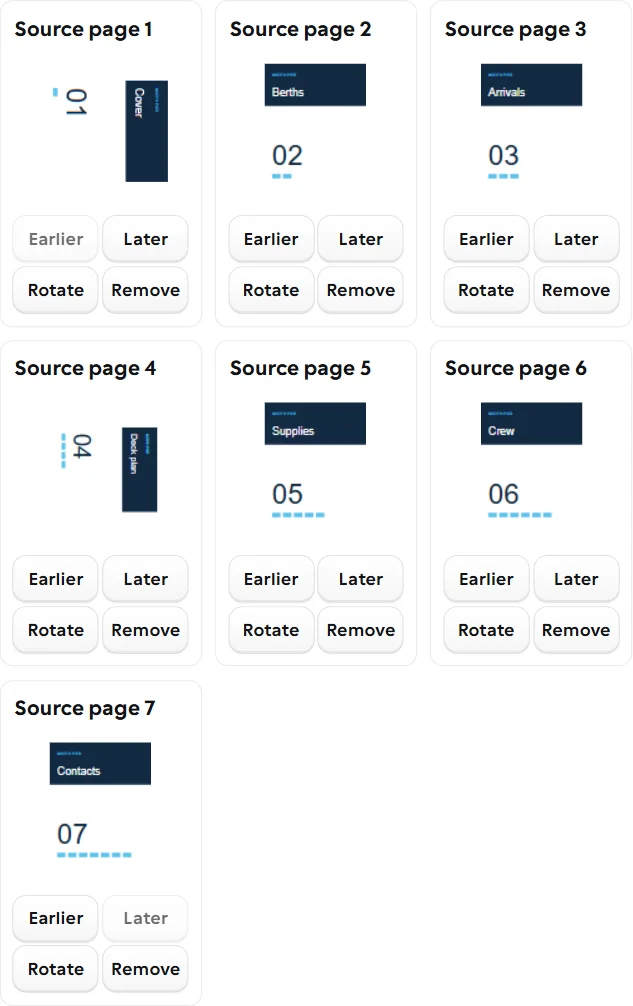
Move the page with its caption if the two belong together. A common ordering mistake is putting a photograph ahead of the note that identifies it. Try reading the last line before the join and the first line after it. If the note says “see attached estimate” and the next sheet is another copy of the cover, you have found the problem before anyone else has to ask about it.
After deleting a duplicate, count again. If you expected eight sheets, then removed the only copy of the receipt along with its duplicate, the seven-sheet result should send you back to the queue. Save this ordered copy with a simple working name. Open it once outside the tool before making a smaller version, so you know which step introduced any later problem.
A 5.2 MB packet and a 5 MB limit
Consider a portal rejecting a packet shown as 5.2 MB against a 5 MB cap. You need a little room under the cap, but you may not need to turn every page into a picture. A photographed receipt can account for more bytes than several pages of typed text. Start by checking whether unnecessary sheets, repeated attachments or an oversized photograph explain the size.
Open the ordered copy in Compress PDF. Choose the option that keeps text first. Look at both byte counts. An office document may already be compact enough that writing it again makes it larger. In that case this tool keeps the original bytes. Getting the same number back is information about the file. Repeating the identical operation will not buy extra space.
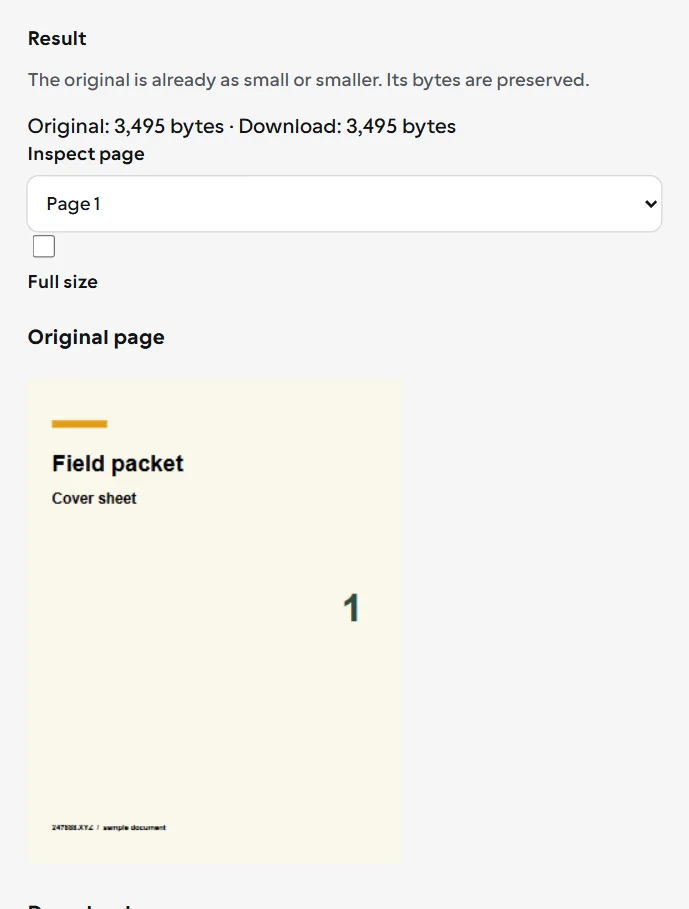
A scan setting is worth trying if the packet consists mostly of photographs of paper and the recipient accepts flattened pages. It replaces page contents with pictures. Download a trial, zoom in on the smallest amount and read the digits from the download. Check the decimal point and the final digit. A page that looks tidy when fitted to a phone can still be too soft for a reviewer to read at normal zoom.
If you have the original large photograph and several small text documents, another option is to reduce just the photographic attachment before assembling the packet again. This leaves the text pages alone. For a photographed receipt that must remain searchable, follow the receipt scan and search check. Adding searchable words can change the byte count, so measure the resulting PDF once more.
Put a signature in the right place
First check what the portal means by signed. Some forms accept a visible handwritten mark. Others direct you through a separate signing service or ask for a certificate-backed document. Follow the recipient’s instructions when it names a service or a signing method. A drawing on the right line can look entirely convincing without meeting that requirement.
For a form that accepts a drawn mark, use the PDF Editor on the ordered working copy. Choose the actual declaration page and locate the applicant’s signature line. A second line may belong to a witness or reviewer. Put the mark above the correct line and add a date only where the form asks for one. Look at the month and day order printed beside the date box.
Save the signed copy under a distinct name, then reopen it. Check the first page, the marked page and the final attachment. If the document arrived with an existing digital signature, rewriting, merging or compressing it can invalidate the signature. Keep that original and ask for an accepted submission route if preserving its verification matters. Never assume a visible image of an earlier signature proves the new file still verifies.
Rehearse the handoff from the downloads folder
Close the working preview and open the file you intend to submit from disk. This catches the surprisingly easy mistake of inspecting a newly generated preview but attaching an older file with almost the same name. On a phone, sort recent downloads by time and look at the full filename. A little number in parentheses often distinguishes two different attempts.
Read the packet once as the person receiving it. Can you find the applicant's name on the first relevant sheet, the signed declaration and the supporting item the declaration mentions? Do the pages turn the right way? If the portal requires selectable text, try selecting an actual sentence in the final PDF. Finding it in the document from which you started does not prove it survived a flattened export.
Check the limit using the final signed file. An operating system may round two different byte counts to the same displayed number of megabytes. If the instructions provide an exact byte limit, use that number. If the form reports only a rounded limit, aim for some headroom while keeping all important details legible. A screenshot of the portal’s success receipt and the exact filename make a useful pair if you have to discuss the submission later.
When the portal still refuses the file
Read the new message before compressing anything again. “Password protected” describes an access problem. “Unsupported type” can mean a picture was renamed with a PDF extension. “Attachment exceeds total allowance” points to the other uploads as well as the one you just added. None of these messages tells you that a stronger compression setting will solve the problem.
These tools work on the selected files in your browser. The receiving portal is a separate service with its own checks. Keep the working tab open until the download finishes, particularly on a phone with several large documents. If you report a tool problem, send the tool address, the setting and a harmless example. A private application packet is rarely necessary to explain a wrong page order.
Reader questions
Should I merge first or compress each PDF first?
Arrange and inspect the documents first when they are mostly text. If one large scan accounts for most of the size, try compressing that scan separately. Rebuild the packet and check the byte count of the complete download.
Can I leave out blank pages?
Remove a truly empty scan when the recipient allows it. A sheet marked intentionally blank can be part of a numbered official packet. Keep it when the instructions ask for every page or when removing it would make the numbering look incomplete.
Why does my PDF look signed but fail verification?
A drawn signature and a certificate-backed signature are different. Editing a digitally signed file can break its verification while leaving the visible mark in place. Check the unmodified original in the recipient’s preferred reader.
What should I keep after the form accepts the upload?
Keep the submitted file, its original source documents and any receipt or reference number from the portal. A later request for one corrected page is much easier to handle when you can tell exactly which version the reviewer received.